
Music & Utilities
SongFetch
Name any song you see or hear
The credit in the corner of a screenshot, the title on a poster, or the track playing across the room. SongFetch reads it or hears it, finds the song, and opens it in Apple Music or Spotify. Screenshots are read on your iPhone and never leave it.
- Listen, camera, paste or screenshot
- Reads screenshots on-device
- No accounts, no ads
- Control Center, Lock Screen and Action Button
Screenshot it, or tap Listen. SongFetch finds the song.
How it works
- 01
Listen
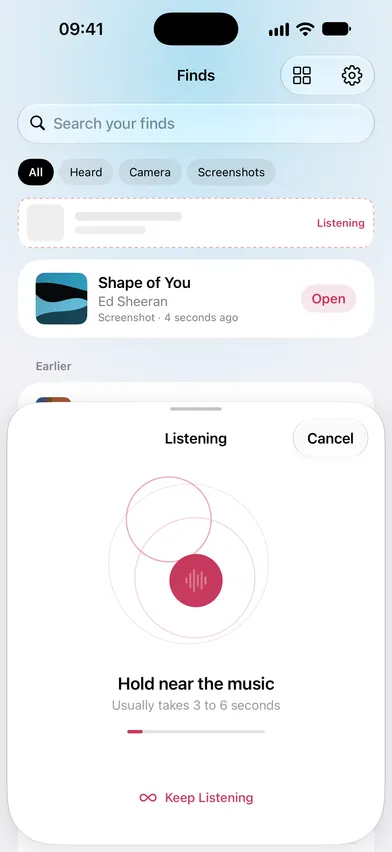
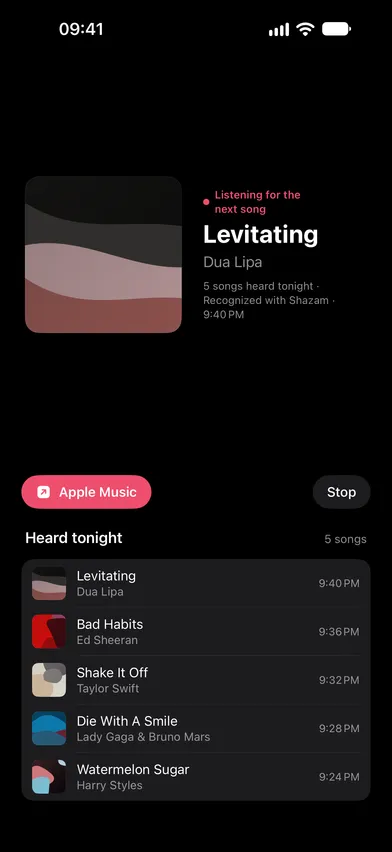
Tap Listen and hold your phone near the music. ShazamKit names the song in a few seconds. Hold the button instead for Keep Listening, which names every song that plays.
- 02
Look
Point the camera at a poster, a record sleeve or another screen, tap the lines with the title and artist, and SongFetch looks them up.
- 03
Screenshot
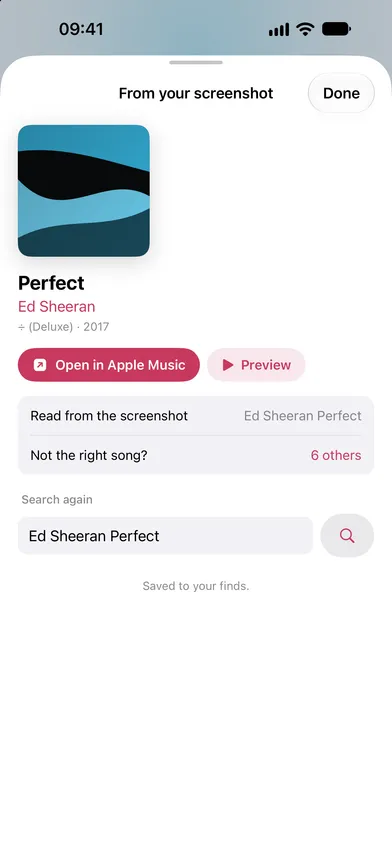
A TikTok, a Reel, a Short or a friend's message. Paste it, pick it, or share it in from any app. Apple's Vision framework reads the text on-device.
- 04
Open
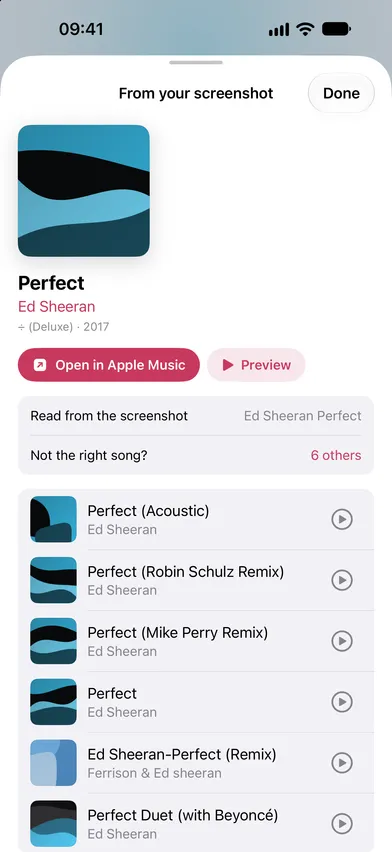
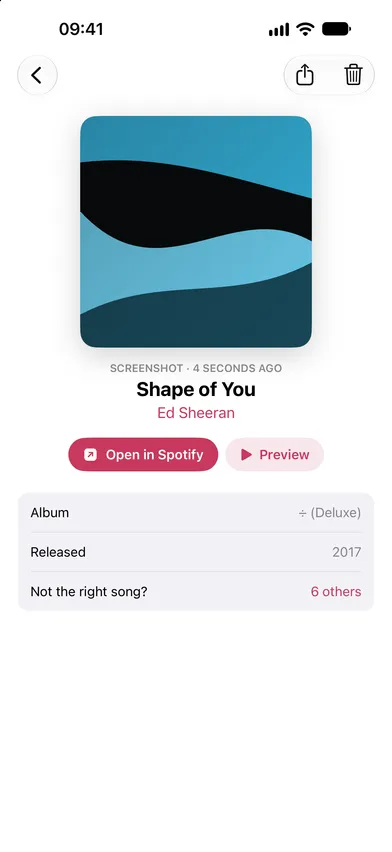
One tap opens the track in Apple Music, or a Spotify search for it. If the first match isn't right, pick from the closest alternatives.
A look inside
What's inside
-
Screenshots stay on your phone
Text recognition runs entirely on-device. Screenshots and photos never leave your phone; only the song name it reads is looked up.
-
Keep Listening
Leave it running through a party or a DJ set. It names each song as it plays, keeps a Heard tonight list, and saves every one to your finds.
-
Built for messy screenshots
A ♪-prefixed credit, a "Title - Artist" line, a stacked now-playing card, or just prominent text. It handles the layouts real screenshots actually have.
-
Ranked, not guessed
Results are scored against the whole screenshot rather than a single query, then karaoke versions, covers and sped-up edits are demoted.
-
Every way in
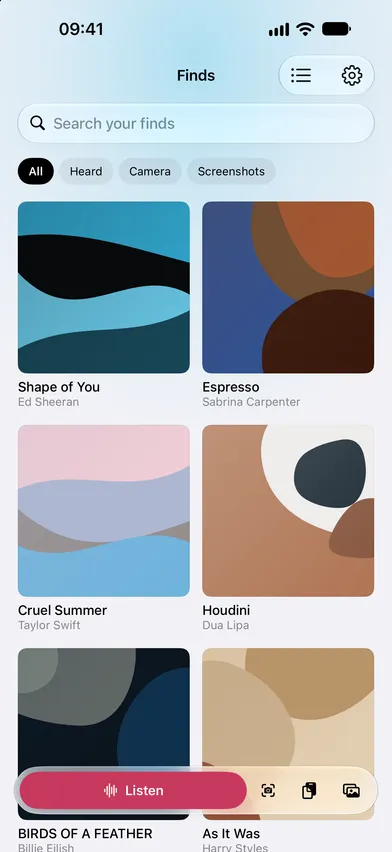
Listen, camera, paste or photos from the bar at the bottom. Share a picture or a video in from any app, and a video is named by its soundtrack. Or start from Control Center, the Lock Screen or the Action Button.
-
Apple Music or Spotify
Matching uses Apple's public catalog, so no subscription is needed. Open lands on the track in Apple Music, or on a Spotify search for it if you choose Spotify in Settings.
-
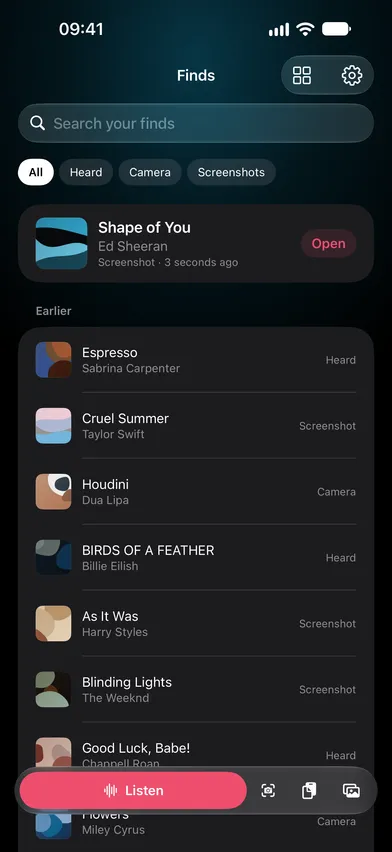
Every find in one place
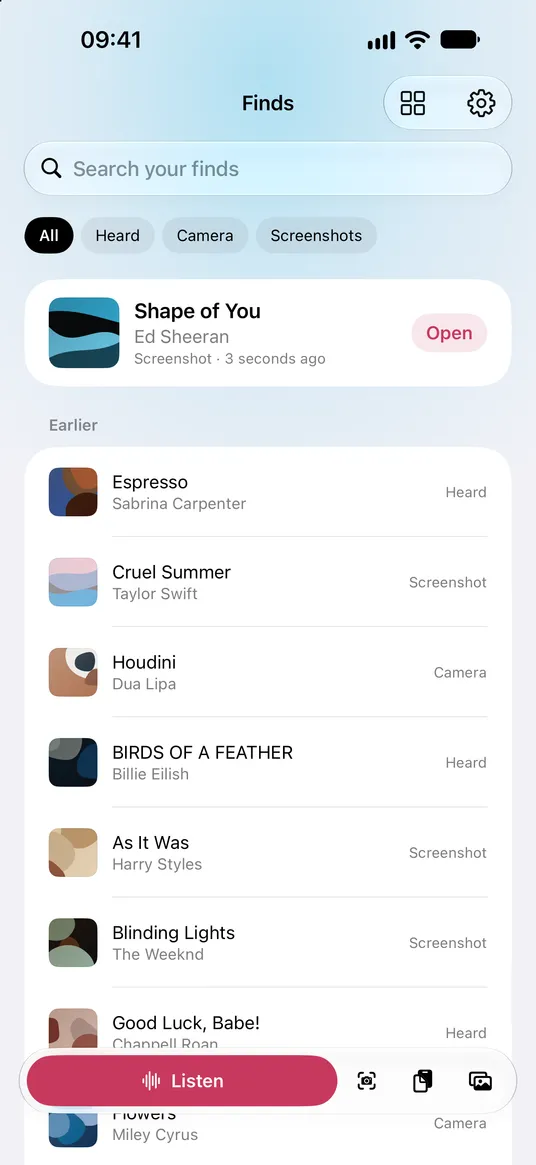
Search your finds and filter them by how you found them, heard, camera or screenshot, as a list or a grid of covers. They sync over your own iCloud account.
-
Three free finds, then one unlock
Every install starts with three free finds. After that, SongFetch Unlimited is sold monthly or as a single lifetime payment, and both unlock exactly the same thing. No ads and no accounts either way.
About SongFetch
SongFetch started with a small, specific annoyance: a song goes past, you screenshot it so you won’t lose it, and then it sits in the camera roll. The credit is right there in the corner of the image, and getting from that to the actual track still means typing half-remembered words into a search box.
It now covers the other ways a song reaches you too. Tap Listen and ShazamKit names whatever is playing nearby; hold it for Keep Listening and it names every song through a whole set. Point the camera at a poster or a record sleeve and tap the lines with the title. Share a video in, and it’s named by its soundtrack.
For screenshots, Apple’s Vision framework reads the text on-device; where Apple Intelligence is available, the on-device model reads the same text alongside the heuristics, as an enhancement rather than a dependency. Neither one sends your screenshot anywhere.
What comes out isn’t a single confident guess but a set of ranked search terms. The catalog is far better at resolving those than a parser is. The results are then scored against everything visible in the screenshot, not just the query, which is what keeps the karaoke version and the sped-up edit from winning.
Every find lands in one library you can search and filter by how you found it, and it syncs over your own iCloud account. Open takes you to the track in Apple Music, or to a Spotify search for it.
Every install starts with three free finds. After that, finding songs needs SongFetch Unlimited, sold monthly or as a single lifetime payment. Both unlock exactly the same thing.
Questions
- Can I find a song from a screenshot?
- Yes. Paste, pick or share a screenshot of a TikTok, Reel, Short or message, and SongFetch reads the song credit with Apple's on-device text recognition, looks it up and ranks the closest matches.
- Does SongFetch upload my screenshots?
- No. Text recognition runs entirely on your iPhone. Screenshots and photos never leave it; only the song name read from them is looked up.
- How is SongFetch different from Shazam?
- Shazam and the Music Recognition button in Control Center only listen, so the song has to still be playing. SongFetch listens too, using ShazamKit, but it can also read a song from a screenshot, a photo or the camera, long after the music stopped.
- Can it name every song at a party or DJ set?
- Yes. Hold the Listen button for Keep Listening, and SongFetch names each song as it plays, keeps a Heard tonight list and saves every one to your finds.
- Does it work with Spotify?
- Yes. Matching uses Apple's public music catalog, so no subscription is needed. Open takes you to the track in Apple Music, or to a Spotify search for it if you choose Spotify in Settings.
- Is SongFetch free?
- Every install starts with three free finds. After that, SongFetch Unlimited is sold monthly or as a single lifetime payment, and both unlock exactly the same thing. There are no ads and no accounts.
Stop losing songs.
SongFetch is live on the App Store for iPhone. Screenshot it, point the camera at it, or tap Listen, then open it in Apple Music or Spotify.
Get SongFetch


